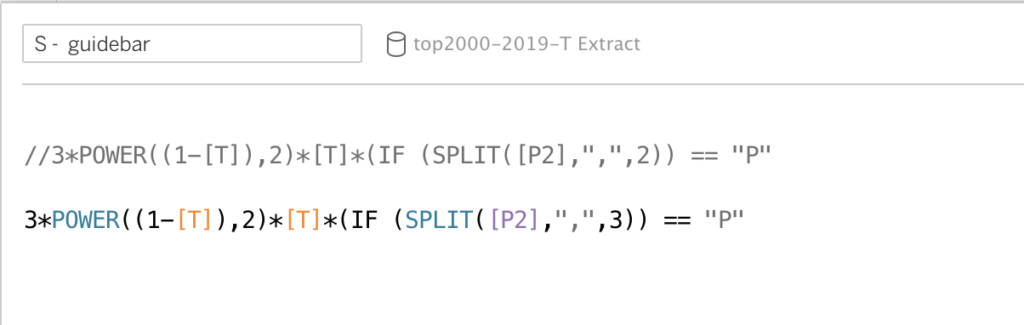
When you are creating a calculated field in Tableau Desktop, Server of Prep you might want to create some comments to help others see what the purpose of this field is, or explain the calculation that you made. In other situations you might want to test a line of code, and disable a previously written block of code without deleting it.
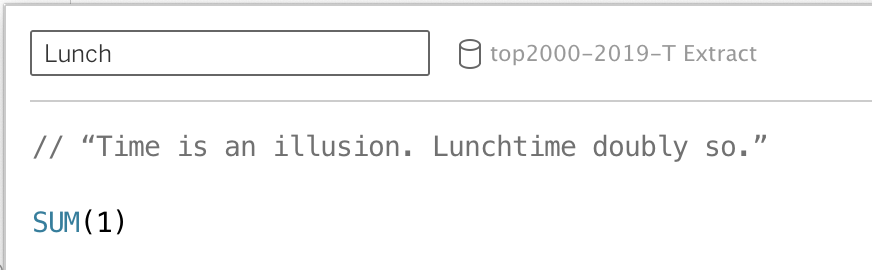
This is all possible using comments in calculated fields.
Creating a Comment in a Calculated Field
It is really easy to add a comment to a calculated field in Tableau. Simply put to forward slashes (//) in front of the text or code you want to be a comment. Tableau will render this piece ‘light-gray’, and the text or code will be ignored in the calculation.
Block Comments in Tableau 2020.4
Commenting in calculated fields is a feature of Tablleau for a long time. The ‘double-forward-slash’ is in fact a common way to create one-line comments in many programming languages like Javascript.
If you want to create a multi-line comment you need to add a // to each line. But in Tableau 2020.4 this will be a bit easier: add a “/*” at the start of the comment, and “*/” at the end – no need to identify the individual lines. A small but welcome addition, also borrowed from other programming languages
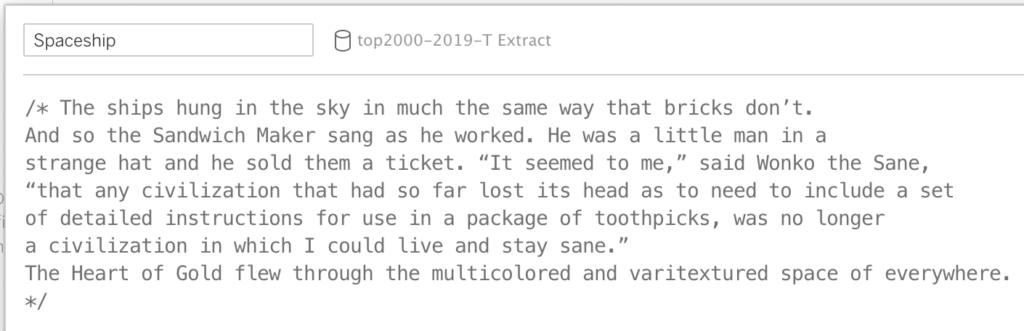
Comment Types
There are several ways to use this incredible useful and easy – but often unknown – feature. Use it to explain what the calculation is for, how it is build, or to to explain parts of the code. A few use cases:
1. Explain the calculation
Why did you create this calculation?
It never hurts to create a comment which explains why a specific calculated field has been created. This will definitely help the next maintainer of the dashboard find her/his way. And probably also yourself in a few months time 🙂
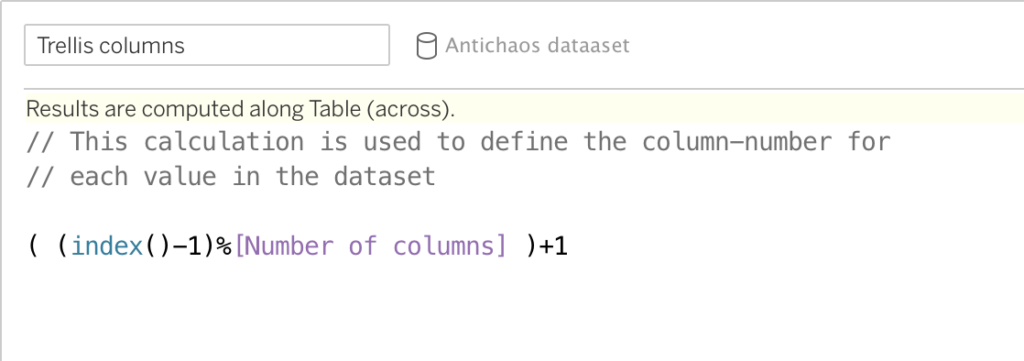
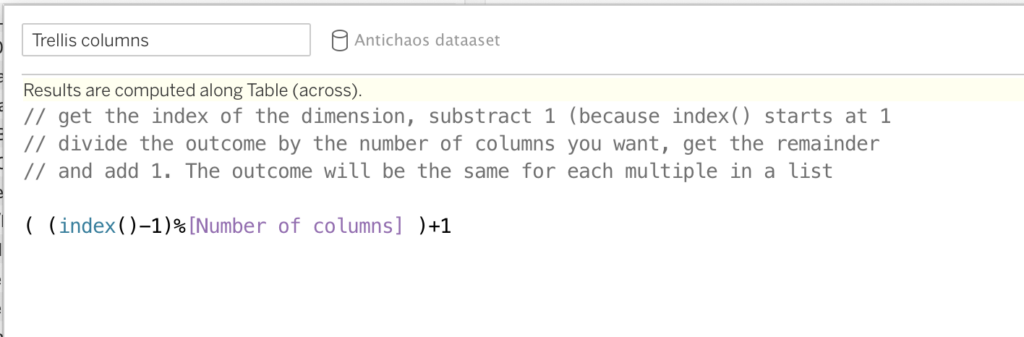
2. Explain the technical details of the calculation
How did you create this calculation?
A complicated formula can be hard to decipher. Guide the maintainer of the dashboard trough the steps you took. You don’t have to explain the details to a total Tableau beginner, but lead the developer trough the calculation, so she or he can follow your thinking-proces – and the buildup of the end-result: your visualisation.
3. Explain a piece of code
How / why did you create this part of the calculation?
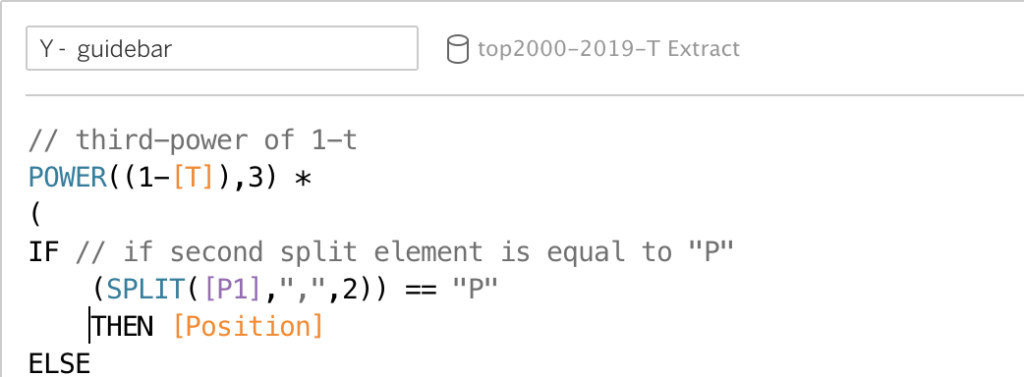
Some calculations are too hard to explain in a couple of sentences on top of field-editor. Guide the developer line-by-line or block-by-block, explaining each step in non-Tableau language like English. Other languages are discouraged, because you never know if the next developer can read Dutch, Swahili or Russian…
4. Disable a piece of code
When developing a single calculation or a complete visualisation you often want to test a formula. What happens if… Will my visualisation load faster if… Maybe if I change this to that….
You don’t need to delete all your existing code to test new code: just comment-out the code, and write the new code next to it.