
The ‘shapes’ functionality in Tableau is a nice way to enhance and personalize a visualization. But be aware what exactly you are decoration – especially on maps.
Custom Shapes 101
It is really easy to add your own shapes to Tableau. Create the icons you want, and copy these into a new folder in the ‘Shapes’ folder of your Tableau Repository. You can find this folder:
macOS/Users/USERNAME/Documents/My Tableau Repository/shapes
(same as iCloud/Documents/My Tableau Repository/shapes)
WindowsC:\Users\USERNAME\Documents\My Tableau Repository\Shapes
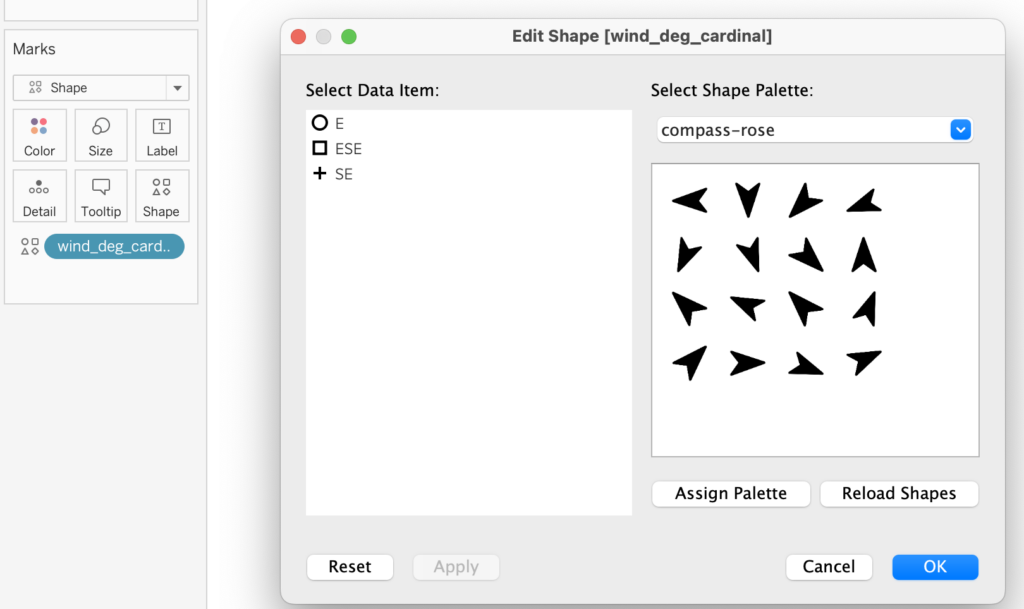
For example, if you have 16 different icons for all wind directions, put these into a folder ‘compass-rose’ in My Tableau Repository\Shapes, click on ‘Reload Shapes;’ – and you can select these icons for items you want:
The beauty – and problems of shapes on maps
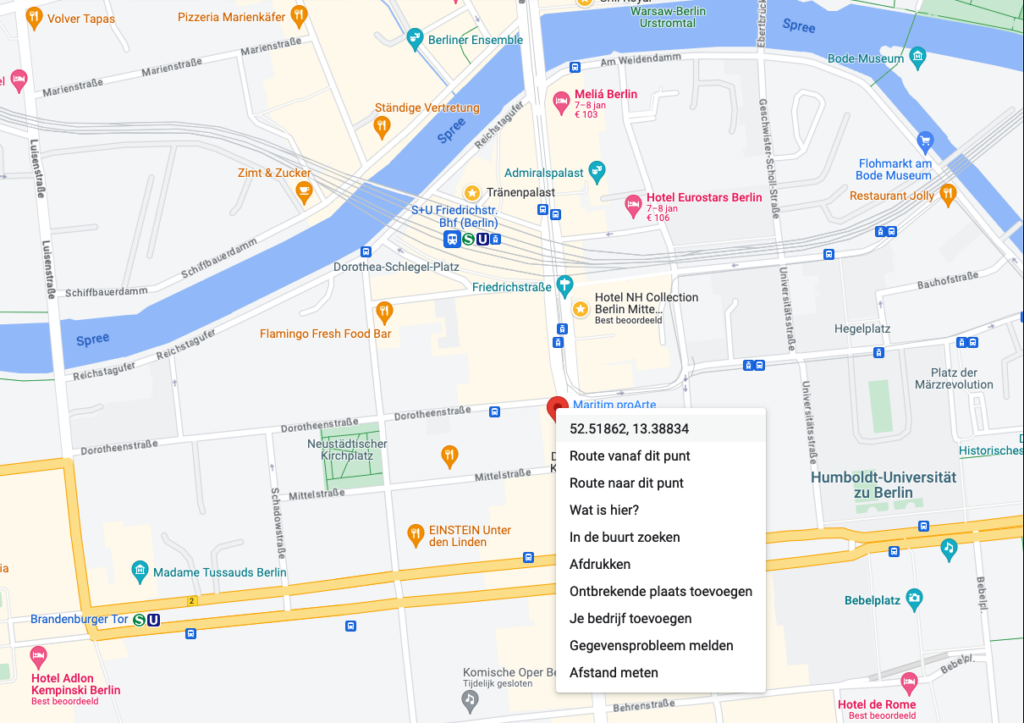
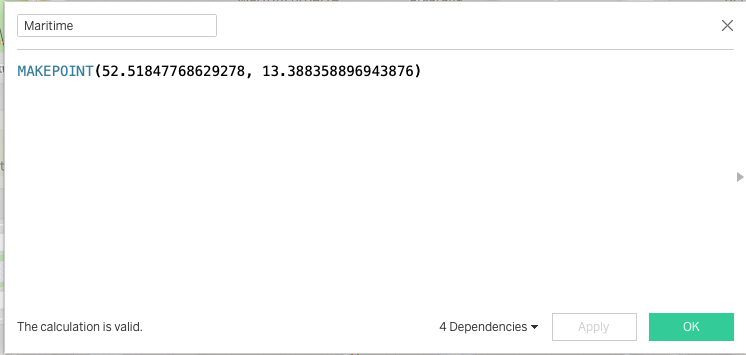
I wanted to show where the conference-hotel of Vizit Berlin 2023 was located. Using Google Maps I found the longitude and latitude of our location (just right-click), and created a spatial point with the MAKEPOINT function.
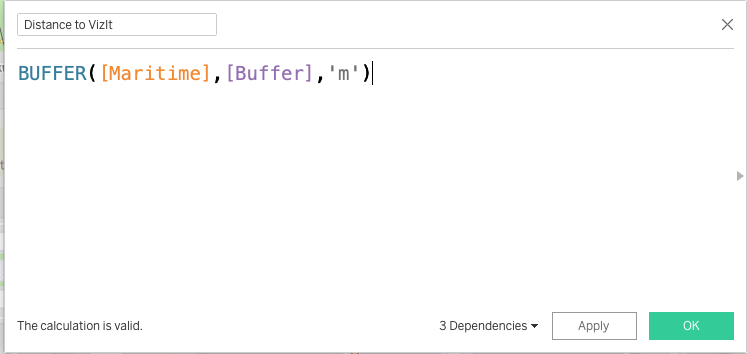
Everyone knows the Google Maps ‘pin’ icon, so I downloaded the icon from the internet, saved it in my Tableau Repository, and used this for the location.
Then I create a spatial buffer around our location to zoom in and out, controlled by a parameter.
And It looks great!
Using the parameter I can zoom out and in. (see the video)
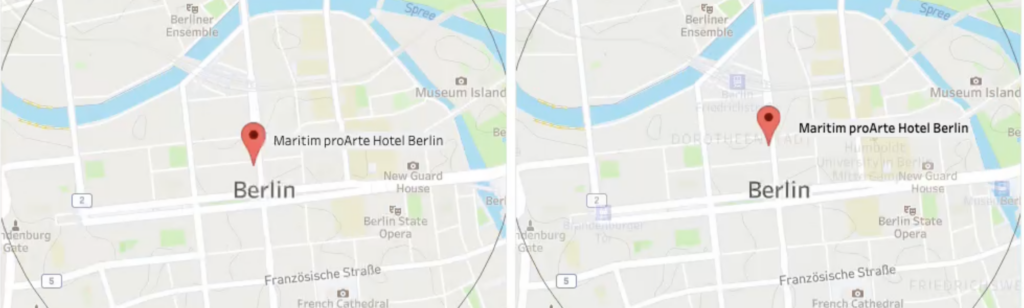
But do you see that? Our location seems to change location when zooming out. The hotel is shifting southwards, and even crosses the street!
What happens here?
Quite simple: my icon is still at the same location, but we all assume this location is at the point of the Pin, but it’s at the center…
The solution
I need the bottom of the pin to ‘point’ at the location, instead of using the middle.
To fix this I open Photoshop, and enlarge the pin icon, so the point is exactly in the middle of the image. The area around the pin is transparent, but Tableau will center the full image, not only the visible part.
I save this one again in my shapes folder, reload the viz, and now the icon is pointing VizIt Berlin’s Maritim proArte Hotel, instead of moving southwards:
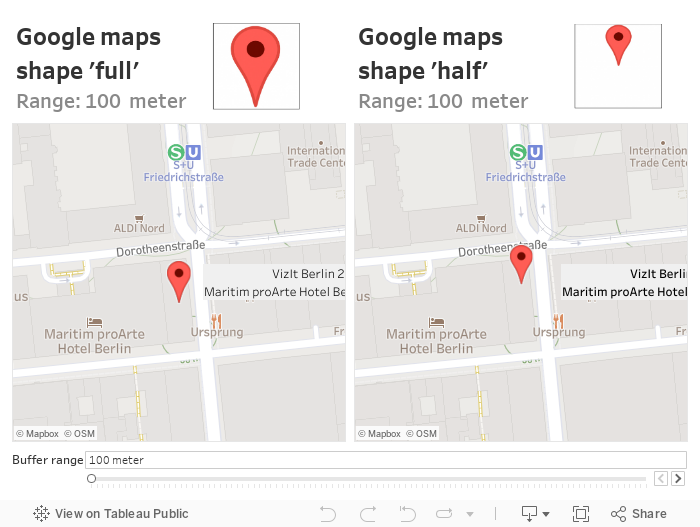
Problem solved – and important to remember the next time you visualize points on a map