
After year in Tableau Desktop, I sometimes forget the minor features that make the program so powerful. They’re the small moves: searching data fields, creating calculations on the fly, editing pills – that you do dozens of times a day without thinking.
Half of these tips I only realized were worth writing down because someone stopped me mid-explanation while I was teaching and asked “Wait. How did you just do that?”
After the first round went down well, here are five more, this time all centered on fields, calculations, and pills.
Missed the first batch? Start with the first five Tableau Desktop tips.
1. Find a specific field: name, type, table, comments
Can’t always find the right field in Tableau when working with large(r) datasets? If the list of fields is long, and even longer because you added calculated fields, sets and more, it can be hard to find the right field quickly.
Searching for a name works of course – if you remembered what it’s called. Tableau helps you with some modifiers to narrow down the fields:
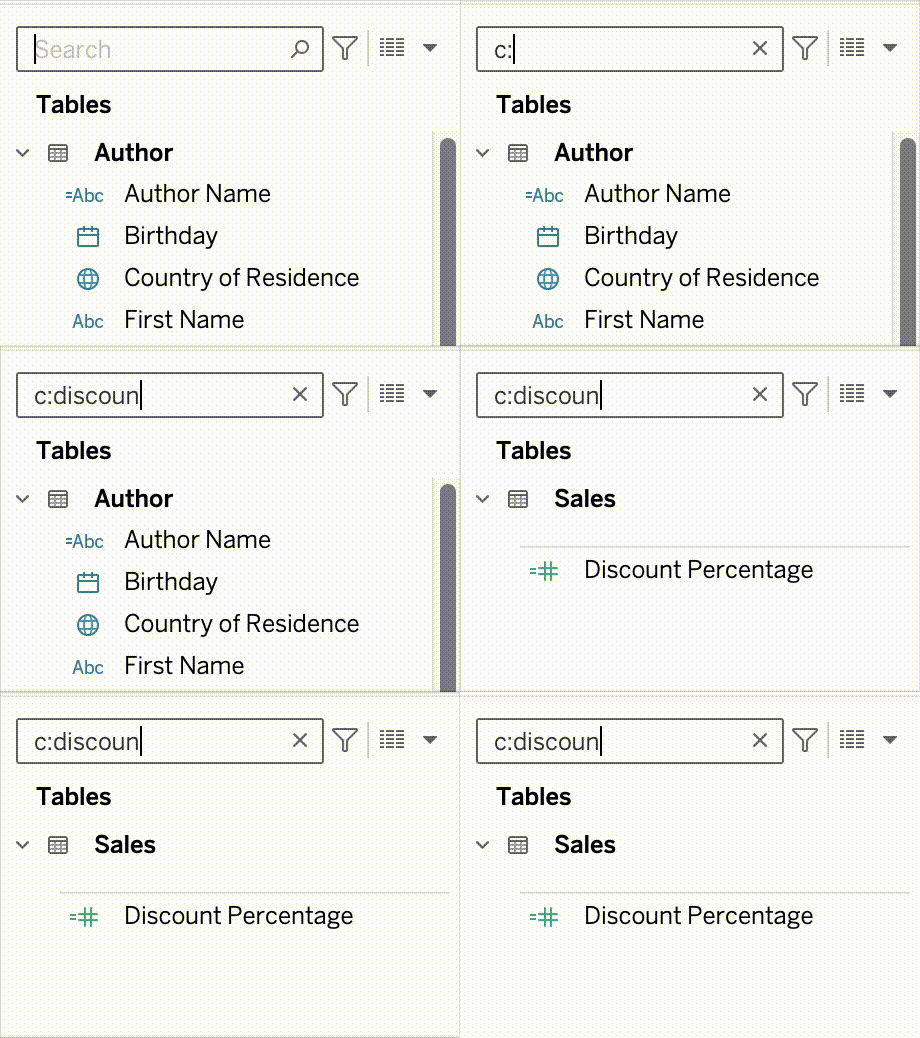
Show only Calculated fields – c:
My personal favorite: show only the calculated fields in your dataset. For example: find all calculated fields with ‘profit’ in the name;
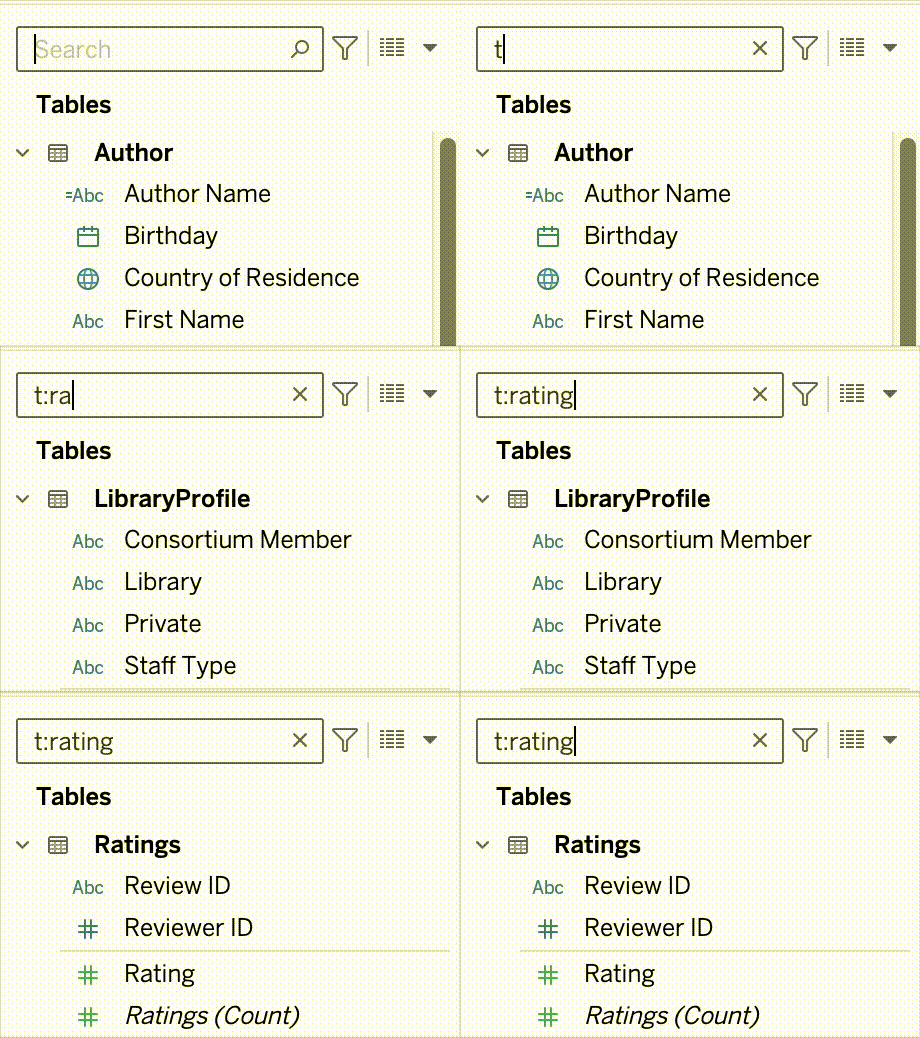
Filter by table – t:
Show only the fields from a certain table (new since 2026.1!). Just show the fields from a certain table, like table ‘ratings’ in this dataset:
Only measures – m: , Only dimensions – d:
Not sure how useful this is to be honest… But you can filter the list to show only the measures or dimensions.
Search in comments – f:
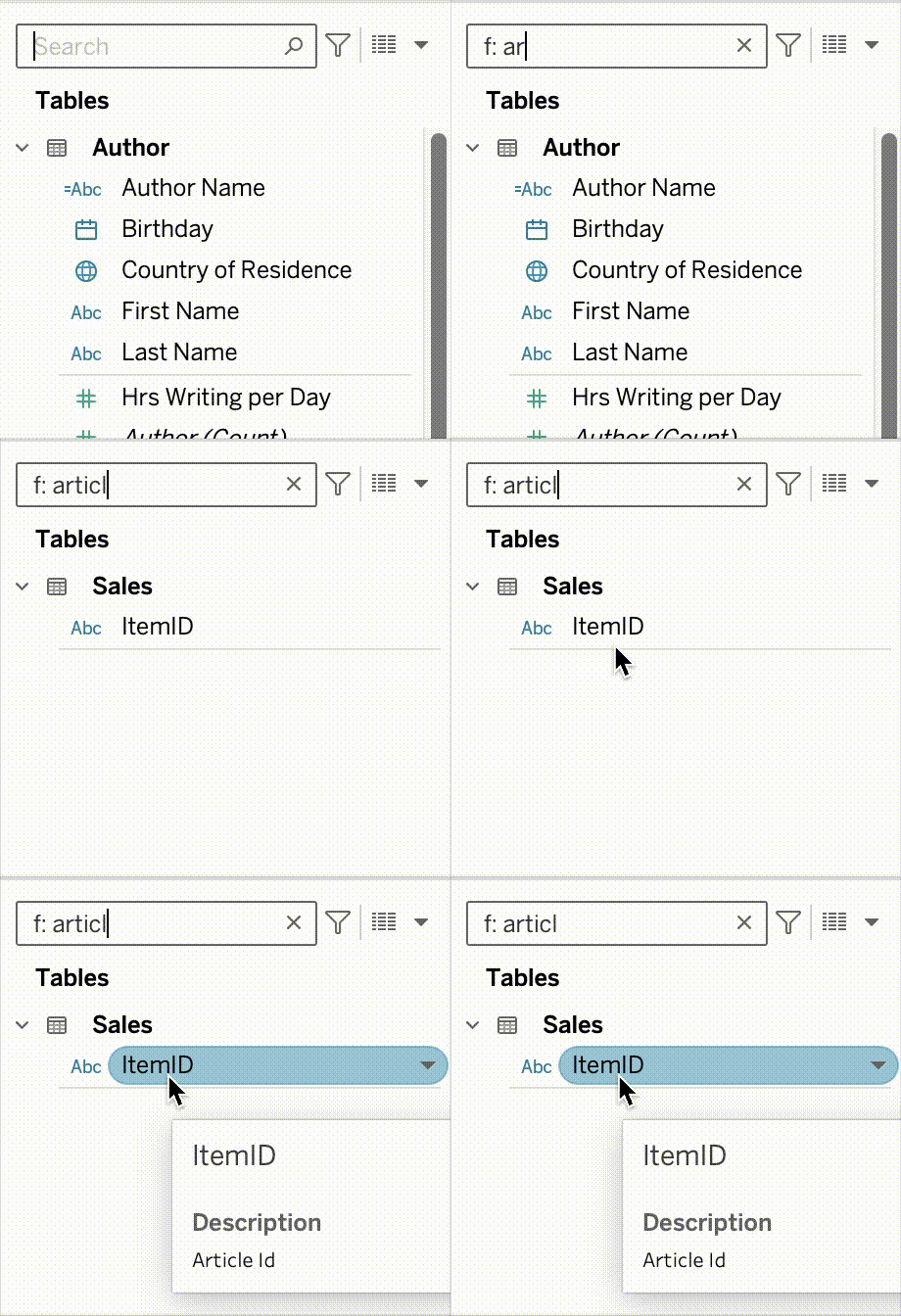
If you’re adding comments to your fields (and you should!), you can search the text inside those comments too.
Say you’ve added the comment “ArticleId” to your ItemId field, to flag that the two are different names for the same thing; you can now find that field by searching inside those comments.
Would be nice
Personally, I’d love to see more of these search operators: show only date fields, sets, booleans… And an option to filter by the contents of calculated fields: “show me every calculated field that contains a Level of Detail expression.”
There’s always something left to wish for.
2. Ad-hoc (or type-in, in-line) calculations
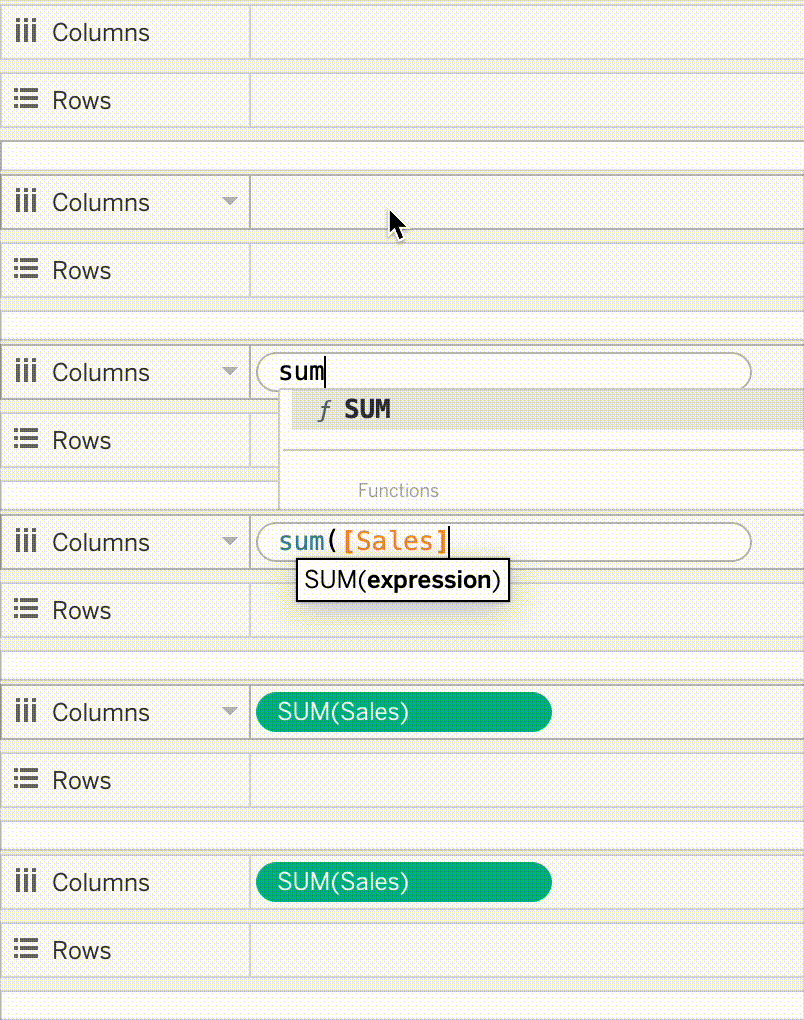
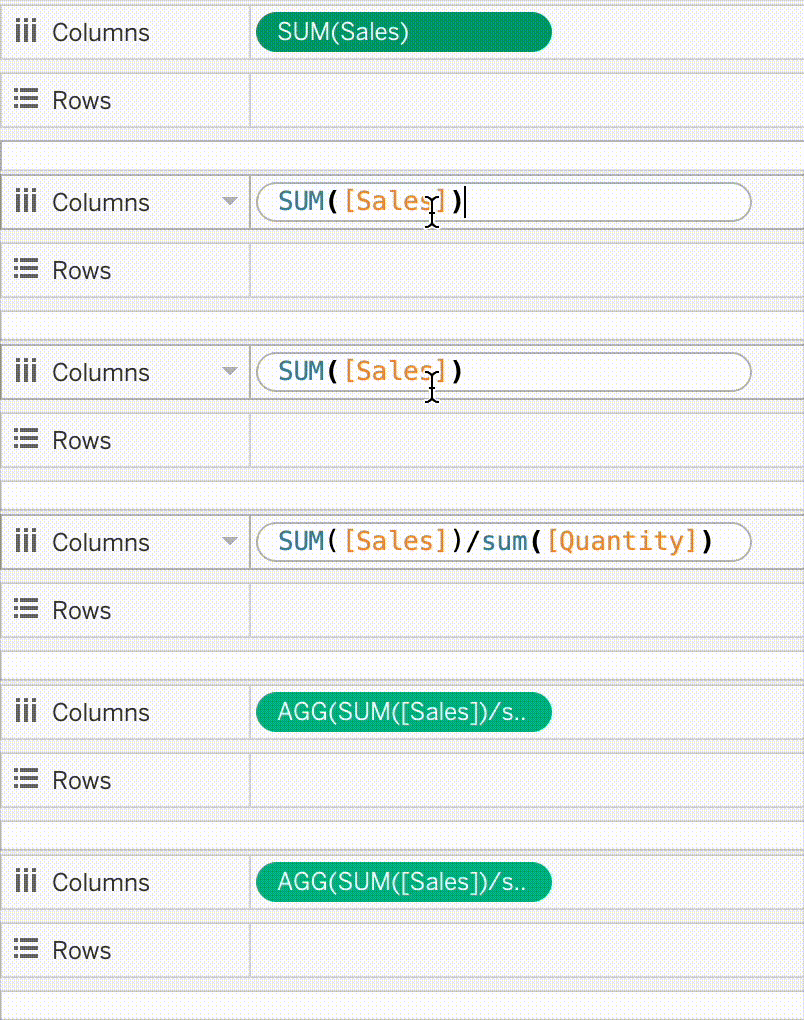
That one feature unknown to many newbie users, yet used constantly by experienced ones. Ad-hoc calculations are calculations you can create and edit right on a shelf in the view.
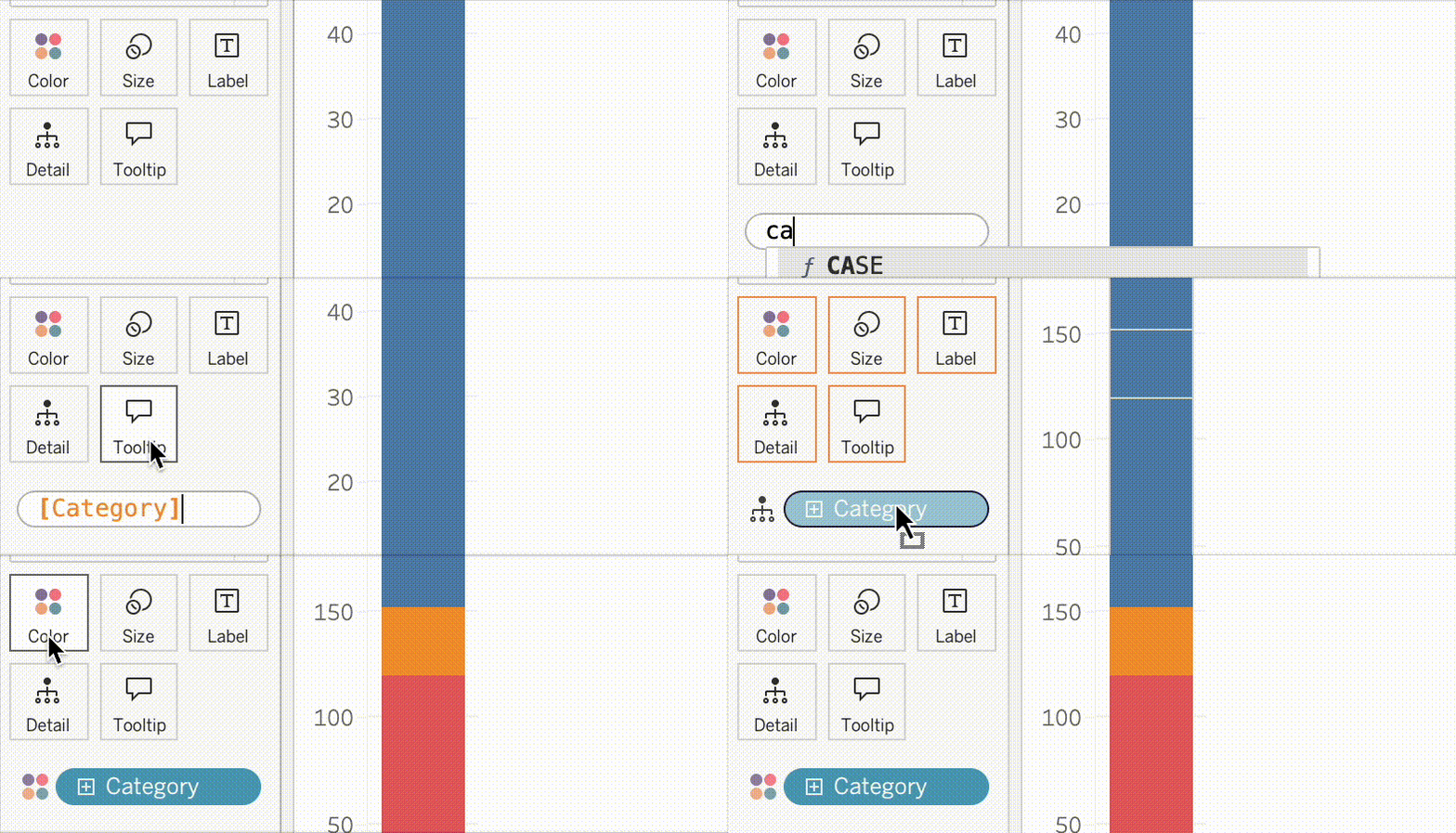
Double-click on the Columns/Rows shelf or Marks card and start typing your calculation:
3. Drag-and-Drop from Calc to Datapane
If you’ve created an ad-hoc calculation, you can save it easily by dragging it to the data pane. Rename it – and it’s done!
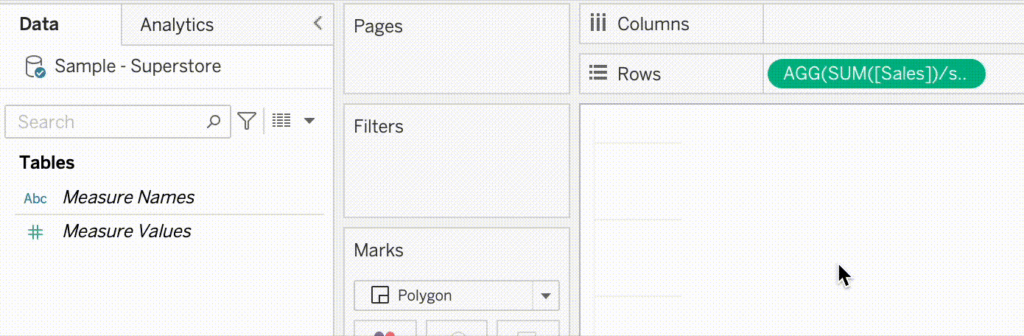
4. Drag-and-Drop to Marks from Calculations
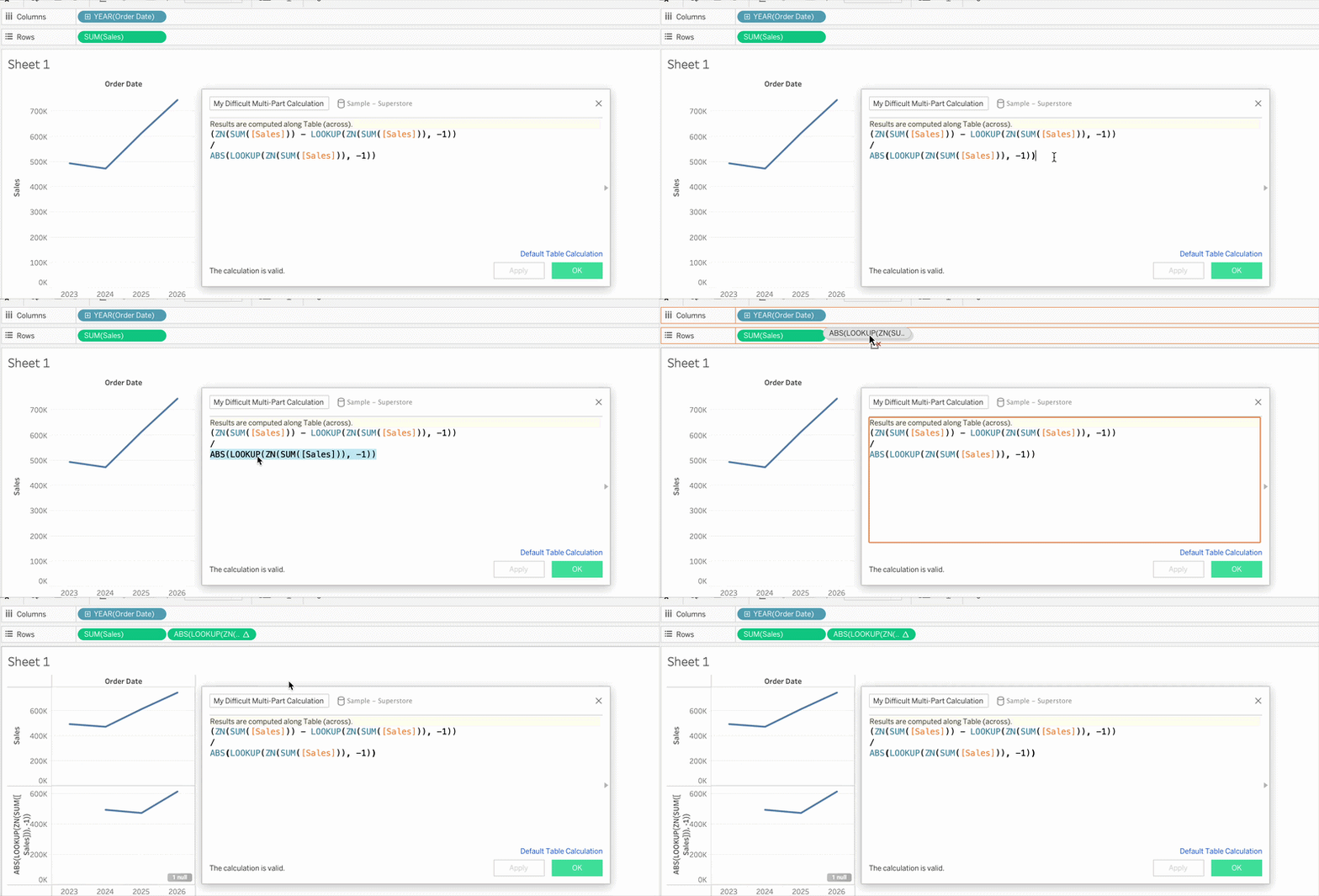
Not sure a piece of your calculation is doing the right thing? Drag just that piece onto a shelf and see for yourself.
5. Swap fields inside a pill
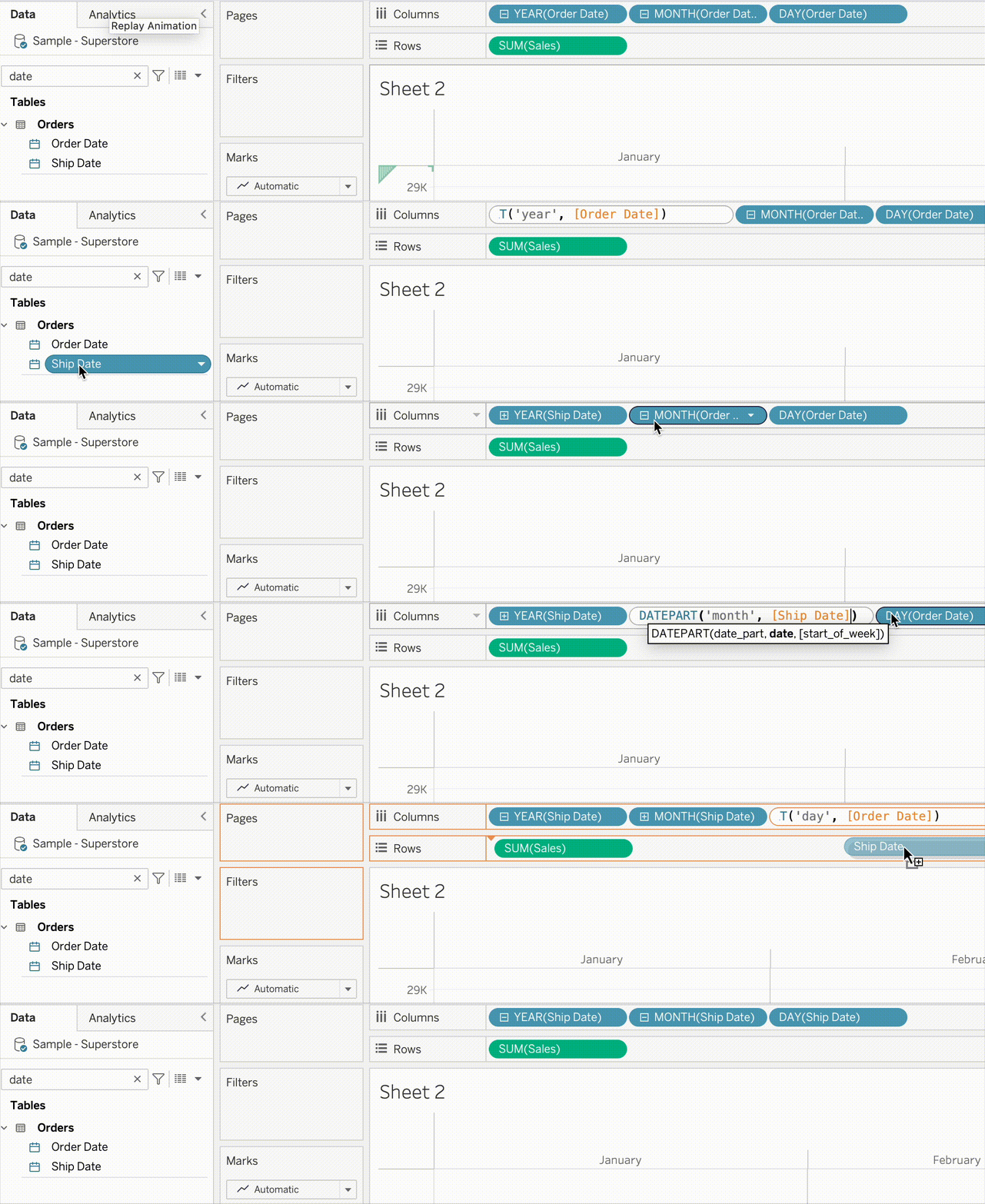
Finished your viz, and someone asks you to swap Order Date for Ship Date? Don’t rebuild the whole hierarchy – double-click the separate pills, and replace just the field inside the calculation.
More tips!
This post was supposed to stop at five – but the list kept growing, so more tips are on the way!