
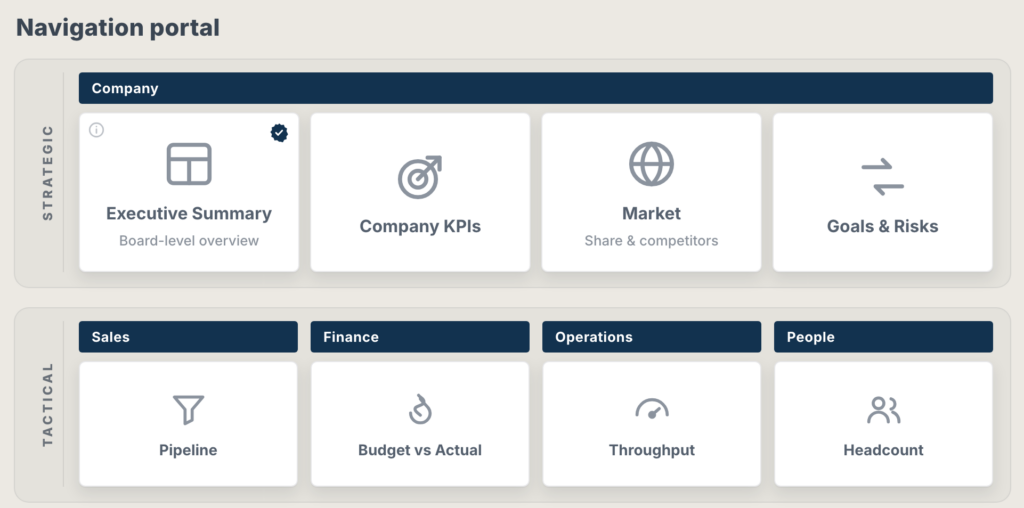
Atlas builds a navigation portal for your Tableau dashboards. You sort them into sections and groups; Atlas lays out the cards. Add a dashboard and the portal re-flows. Click a card and you are on the dashboard you need.
Why a portal
Once a company’s Tableau site has more than a handful of dashboards, people start asking ‘where can I find this dashboard’?
The usual approach is to create a dashboard with a button or image for each report, placed by hand, held together with dashboard URL actions. That works, until a dashboard is added or renamed and you have to move everything around again. And to be honest: they often don’t look very pretty
Atlas takes care of the layout. You list your dashboards in sections and groups, and Atlas arranges them as cards that fit the space on your dashboard. Add one, and the rest moves along.
Built from a list, not placed by hand
- Three levels. Sections (for example Strategic, Tactical, Operational), groups within them, and the dashboard cards.
- A visual builder in the configuration dialog: add, reorder and nest with a few clicks. It opens with a sample portal, so you start from something real.
- About 150 icons, searchable – type “cash” or “factory” – or your own images.
- Export and import the portal as a file to reuse it on another dashboard.
- With Pro, build it from a worksheet, so maintaining the portal is editing a table, not editing the workbook.
Navigate inside the workbook, or outside Tableau
A card can switch a parameter instead of opening a link. Combine that with Tableau’s dynamic zone visibility and one dashboard becomes a small app: click Sales and the Sales view appears, and the card stays highlighted so people know where they are.
Cards can also open any Tableau Server or Cloud view, or any web page, in a new tab – so a portal can point at other workbooks, a wiki or a data catalogue just as easily.
Looks designed from the first minute
- Six styles: Classic, Modern, Glass, Rail, Gallery and Minimal.
- Your colors, with even rows or a uniform grid. Every card in a row is the same height.
- What matters about each dashboard: status tags (New, Beta, Deprecated or your own), a certified badge for the official numbers, a subtitle, and an (i) note for the owner, the refresh time or a caveat.
- Help people find things: an optional search box, and a help button that opens your own explanation of the portal.
Free and Pro
Free
- The complete portal: builder, all six styles, colors, two base themes
- Parameter navigation with the current card highlighted
- Status tags, certified badge, subtitles, notes, search, help dialog
- Export and import the portal as a file
- A small “Made with Atlas” badge
Pro
Everything in Free, plus:
- Build the portal from a worksheet
- Eight more color themes, fonts and text size
- Your logo, a background image, your own certified badge
- Export as a table (CSV) or a standalone web page
- No badge
Atlas Pro is now on sale for EUR 349 per organization per year. A self-hosted copy, served from your own web server, is available as well. Ask about Pro.
Adding it to a dashboard
- Download the manifest: atlas.trex.
- Drag an Extension object onto the dashboard, choose Access Local Extensions and open the file.
- Click Configure and edit the sample portal, or start from a template.
- For navigation inside the workbook: create a parameter, give each view a container with Control visibility using value, and point the cards at the parameter.
Important to know
- It reads nothing of your data. The portal is what you typed into the dialog, so there is no permission prompt. Pro’s worksheet mode reads the summary data of the one sheet you point it at, inside the browser. More in security and trust.
- It does not show in exports. Extensions run live in the browser: in image exports from Tableau Cloud the portal is a grey box, and PDFs leave it out.
- It does not run on Tableau Public, which allows only a curated set of extensions.
- Tableau Server and Cloud need it allowlisted by an administrator. That takes about a minute – here are the steps to send them. On Desktop it just works.
Try it first
The live demo is the real extension with sample data – no Tableau needed.
Using Atlas, or missing something in it? Let me know! – I am very curious about what you think of it.