
Click a mark in Tableau and the rest of the view fades out. Click a text mark (a BAN, a button label) and you get a blue selection box on top of it. Tableau does this automatically, and there’s no setting to turn it off – but you can build around it.
This tutorial covers the filter technique: the most reliable way to kill that highlighting behavior, especially on dashboard buttons and BAN-style click targets.
Why this matters
If you’re using a click action to drive navigation or filtering, the highlight/fade effect fights your design. Buttons flash and dim. BANs get a stray blue outline. Besides all your efforts to make it as intuitive as possible, it doesn’t ‘feel’ right.
Set it up
1. Create two calculated fields.
- Field named
0, with the calculation body just0 - Field named
1, with the calculation body just1
2. Convert both to dimensions. Right-click each field and switch it from a measure to a dimension, or move both to dimensions by dragging it.
3. Add both fields to Detail on the marks card of the worksheet you want to fix. This only works one sheet at a time – you’ll repeat this setup for each worksheet on the dashboard that needs it.
4. Build a filter action.
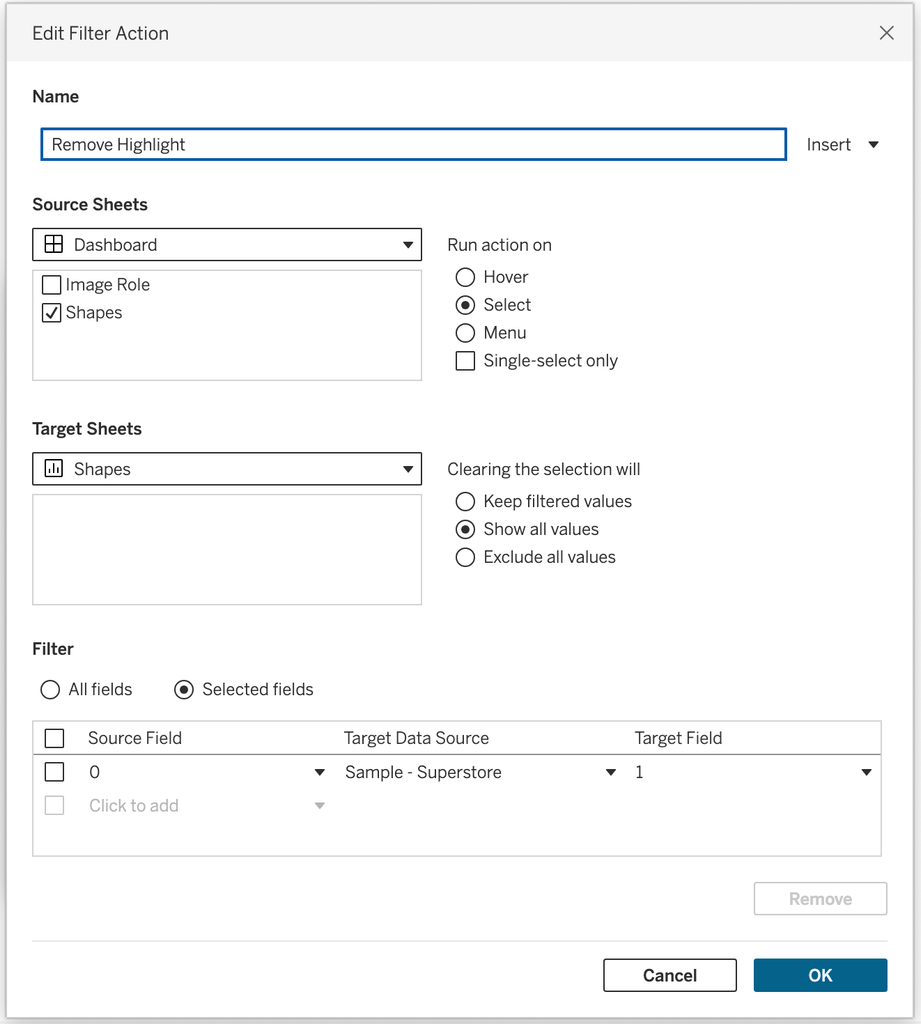
From the dashboard, go to Dashboard → Actions → Add Action → Filter, then configure:
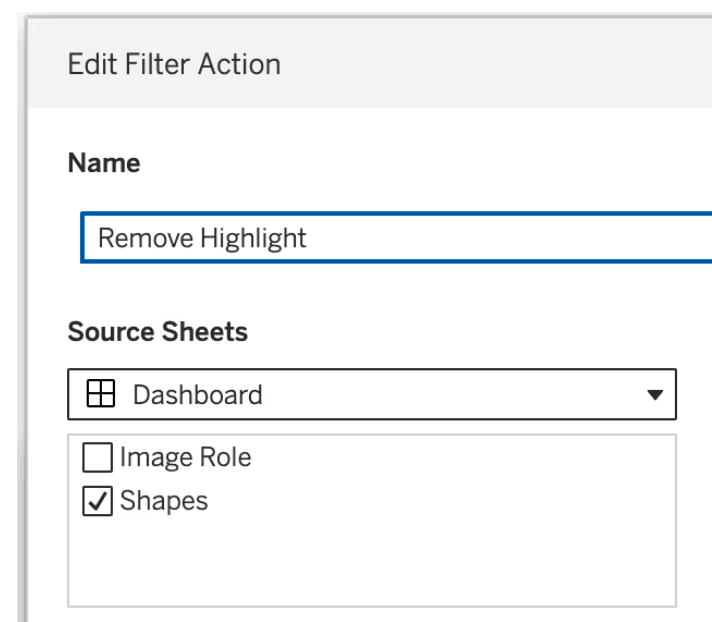
- Source Sheets: the worksheet you’re fixing (select it under the dashboard in the source list)
- Target Sheets: the same worksheet – but important: choose it from the dropdown!at the top, not from the list below
- Run action on: Select
- Clearing the selection will: Show all values
- Filter: Selected Fields → map source field
0to target field1
Click OK and test it.
If it’s not working
Two things cause 90% of the issues:
- Wrong target selection. If you picked the worksheet from the list instead of the dropdown for Target Sheets, the action targets the whole dashboard instead of just that sheet.
- Fields left as measures. If
0and1are still aggregated measures, Tableau will show a “missing fields” warning at the bottom of the action dialog. Convert them to dimensions and re-check.
If you need highlighting off across an entire dashboard at once, or you’re already relying on set controls or other filter actions, a highlight-action-based approach is less setup per sheet, at the cost of not fully de-selecting the mark. Worth knowing both exist — which one to reach for really does depend on the dashboard.