
If your newly downloaded or created extension works perfectly in Tableau Desktop, but there is an empty rectangle on that spot when published to Tableau Cloud or Server – nothing is really broken.
Tableau Server and Tableau Cloud block extensions until an administrator puts the URL on a safe list.
This page is that procedure. If you are not the administrator, send them this link – it is written to be read by someone who has never touched an extension before.
You need: site administrator rights on the Tableau Cloud site or Tableau Server site.
Three steps
1. Find the exact URL of the extension
Two ways to get it:
- From the
.trexfile. It is plain XML – open it in any text editor and read the<source-location><url>element. While you are in there, check what access the extension declares. - From a running dashboard. Open the extension’s More Options menu and click About. The dialog shows the name, the author and the URL.
2. Switch extensions on for the site
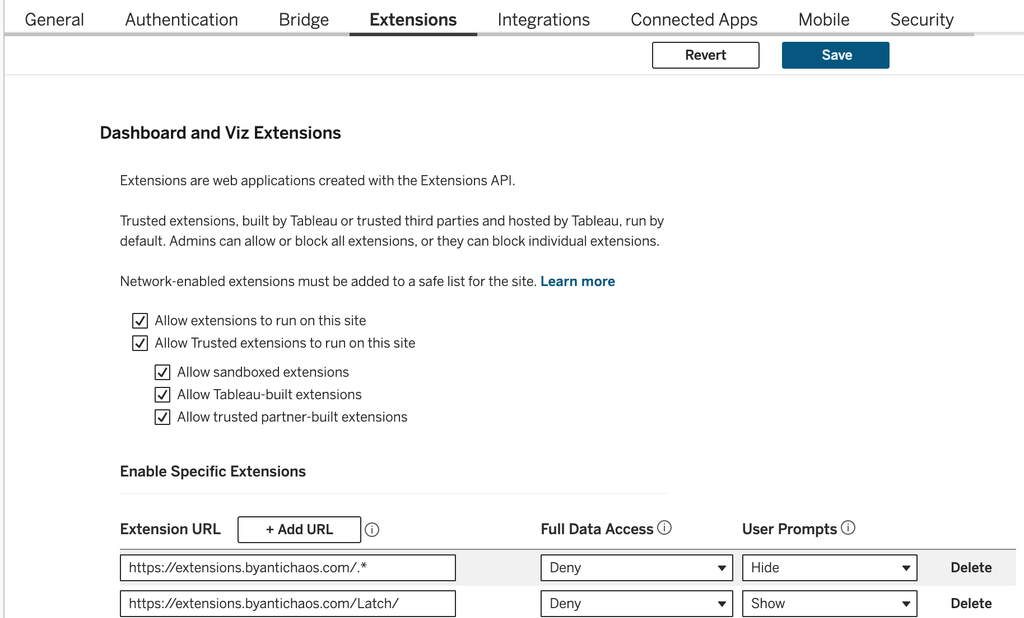
Go to Settings → Extensions. Under Dashboard and Viz Extensions you will find two checkboxes:
- Allow extensions to run on this site – the master switch. Without this, nothing runs, safe list or not.
- Allow Trusted extensions to run on this site – covers sandboxed and Tableau-built extensions, which never reach the network. These are on by default and need no safe list entry.
On Tableau Server there is a second, server-wide layer at Manage All Sites → Settings → Extensions, with the checkbox Allow extensions to run on this server. It is enabled by default. If your server has only one site, the global controls appear on that site’s own settings page instead.
3. Add the URL to the safe list
On the same page, find the section Enable Specific Extensions. Paste the URL and set the two switches on that row:
| Setting | Options | What it means |
|---|---|---|
| Full Data Access | Allow / Deny | Allow gives the extension the underlying row-level data. Deny limits it to the aggregated summary data already in the view. Deny unless the extension genuinely needs more. |
| User Prompts | Show / Hide | Show asks every viewer to approve the extension. For something you have already vetted and put on the safe list, Hide is the kinder option. |
Save, and reload the dashboard.
Exact URL
The most common reason why an allowlisted extension doesn’t load, is a typo.
The URL on the safe list has to match the URL in the .trex character for character – including the capitalisation of the path. /Latch/latch.html and /latch/latch.html are two different extensions.
Therefore: copy and paste it; do not retype it.
Allowing a whole suite at once
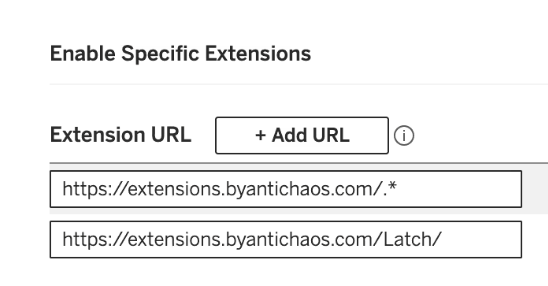
Instead of allowing extensions one-by-one, you can allow every extension on a host using a regular expression:
https://extensions.byantichaos.com/.*That is one line instead of one line per extension, and it keeps working when the vendor ships something new. Which can be the trade-off: you are also approving, in advance, everything that vendor puts on that host in future. Many security teams are fine with that for a supplier they have reviewed. Some are not. If yours is not, list the URLs individually.
Blocking one specific extension
The other side is Block Specific Extensions. URLs listed there are refused across the whole server, and this block overrides a safe list entry.
Remember to set right permissions on workbook/datasource
An extension reads the data already in the view, and Tableau treats that as a download.
So the workbook or view must grant Download Summary Data to the people viewing it. Without this permission the extension loads happily – but does not show anything at all.
What you allow
Before you start requesting an allowlisted (or white-listed) extension, it is good to know some basics:
- An extension is a web page – HTML and JavaScript – loaded into a zone of the dashboard and run in the viewer’s own browser. It is not software installed on your server.
- The
.trexis not the extension, it is the address label: a small XML file naming the URL, the type, the author and the declared permissions. - HTTPS is mandatory, so the code arrives over an encrypted connection.
- With Full Data Access set to Deny, the extension only ever sees the aggregated numbers that are already on screen for that user.
- Whether data leaves the browser depends entirely on the extension.
Most 3rd party extensions are safe, but you can always check the network tab in your browser.
Trusted vs network-enabled
Two categories, and only one of them needs your attention.
Trusted extensions – sandboxed ones and those built by Tableau – run entirely inside Tableau’s own hosted environment with no network access, and are permitted by default.
Network-enabled extensions are hosted somewhere on the internet by whoever wrote them. Those are blocked until they are on the safe list, and those are the ones this page is about.
Common issues
- Empty box where the extension should be, after publishing
The URL is not on the site’s safe list. This is the default state for any network-enabled extension – it is not an error. - It is on the safe list and still blocked
The URL does not match. Check the capitalisation of the path, a trailing slash,httpagainsthttps, and a port number. Paste the value from the.trexrather than typing it. - It loads, but stays blank
Either Download Summary Data is missing on the workbook, or the extension needs full data access and the safe list entry says Deny. - Blank in a PDF export or a subscription email
Expected. Extensions render live in a browser, so they are simply absent from exports and subscription images. Put the extension beside the numbers, not instead of them. - Someone clicked Deny on the data prompt
Reload the extension from its own menu to get the prompt back, or set User Prompts to Hide for an extension you have already vetted. - The extension has frozen
Select it, choose Reload from the menu in the top-right corner. If that does not help, remove it from the dashboard and add it again. - It will not run on Tableau Public
Tableau Public has no safe list you can edit. Only extensions Tableau has curated and approved run there.
Next
If you got here before installing anything, How to use Tableau extensions covers adding one in Desktop, the difference between dashboard and viz extensions, and what a .trex actually contains. Antichaos extensions are listed on the extensions page – Latch, for instance, turns a boolean parameter into a real toggle switch, Atlas creates a beautiful dashboard portal.
Settings and labels verified against Tableau’s documentation for Tableau Cloud and Tableau Server, August 2026.