
There is a screen in your building showing a Tableau dashboard right now. In reception, in the ops room, on the wall behind someone’s desk. It loaded its data when the browser opened it, and it has been showing those same numbers ever since – through the morning, through lunch, quietly and confidently wrong.
Nobody notices, because a stale dashboard looks exactly like a fresh one.
Tempo fixes that. Drop it on the dashboard and it re-queries your data sources on a timer, so the wall display, the shared screen and the tab someone left open since breakfast all keep telling the truth. No one has to touch a keyboard.
Set the beat
By default – out of the box – it refreshes every data source on the dashboard, every five minutes. That is a sensible setting for most screens. If you need, you can change:
- Any interval, in seconds or minutes.
- All sources, or specific ones. Pick them off a checklist – useful when one source is slow/expensive and the rest are cheap.
- Shared sources refresh once. A data source used by six worksheets is still one refresh per cycle, not six.
- Sequential or parallel. Parallel is fast; sequential is kind to your database.
- Cycles never overlap. The next refresh is armed only once the current one has finished, so a slow query can’t cause a pile-up.
Only refresh when it matters
Querying a slow database every five minutes through the night for a screen nobody is looking at is not nice to your data-engineering colleagues. Tempo knows when to remain quiet:
- Active hours. For example, 08:00 to 18:00, and nothing outside those hours. Overnight windows work too, for the shifts that run past midnight.
- Skip weekends, in one click.
- Pause on a hidden tab. If the dashboard is in a background tab, Tempo stops. Come back, and it refreshes immediately if it missed a beat.
- Start paused, if you would rather press play yourself.
Options for kiosk-like dashboards
This is the part that separates a real kiosk tool from a timer. A display that has to survive a long weekend on its own needs more than a loop:
- Keep the session warm. Tempo can refresh slowly through the quiet hours purely so the session’s idle timer never fires. A paused display that gets logged out at 03:00 is a login screen at 09:00.
- Clear warnings. If the session does expire, you get a plain “session may have expired” message rather than a cryptic error code.
- Auto-recover. Repeated failures trigger a reload, rate-limited so it can never spin into a loop.
- Scheduled reload. Optionally reload every N hours.
- One bad source doesn’t stop the rest. Sources are handled individually.
More about keep-warm
A Tableau extension runs in a sandboxed frame, and it can reload itself but not the page around it. So if a session expires completely, no extension can log you back in – Tempo included. That is why keep-warm is implemented: the goal is to never reach that state. If you do reach it, a browser or kiosk-level reload is the fallback, and Tempo at least tells you plainly that is what happened instead of showing an empty view.
See what’s happening in your style
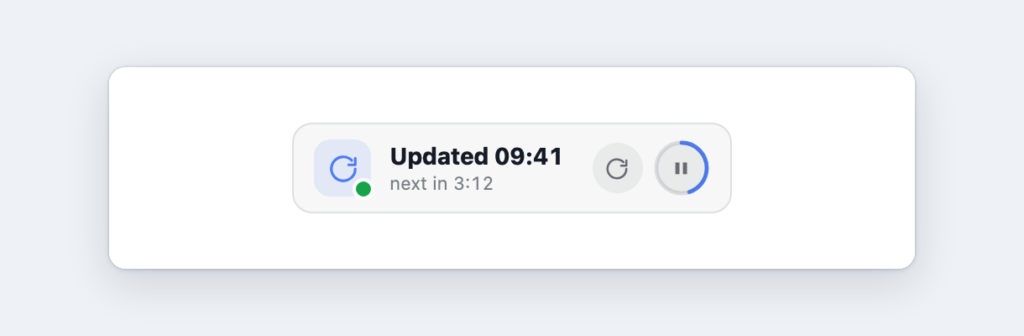
An auto-refresh you cannot observe is an auto-refresh you do not trust. Tempo shows its work: a status card with the last-refreshed clock, a countdown to the next cycle, and buttons to refresh now or pause.
- Three sizes. The full card, a compact pill, or completely invisible when you want the refresh without the furniture.
- Countdown, your way. A bar along the bottom of the card, a ring around the button, or off.
- It fits the zone. Compact on a small tile, stacked on a tall narrow one – no manual fiddling.
- Your colours. Text and accent colours, background, text size, alignment and clock precision, themed to match the dashboard it sits in.
- More than one tile? They coordinate, so a shared source is never refreshed twice in the same beat.
Free, and licensing if you want to support it
All of it is free – the engine, the hosting, the scheduling, the kiosk reliability, the theming. Licensing doesn’t add functionality to Tempo (yet). If you use Tempo a lot, a license helps fund development and gets you early access to new versions of this and other extensions. Licenses for internal (on-premise) hosting are also available.
Get in touch about licensing.
Private by design
Tempo asks Tableau to refresh data sources. It never reads what comes back. Everything runs inside the extension – there is no external service, and none of your data leaves your Tableau environment. (An anonymous, no-PII usage count helps me see which extensions are worth maintaining; it is easy to switch off, and it never sees your sheet’s data.)
Works in Tableau Desktop, Server and Cloud as a standard dashboard extension. You need extensions enabled on the site, and at least one worksheet with a data source on the dashboard. Live connections refresh directly; extract-backed sources refresh from the latest available extract.
On Server or Cloud an administrator has to allowlist it first – that takes about a minute, and there are step-by-step instructions here you can send them.
Try it before you touch Tableau
You can watch Tempo tick in your browser right now – no install, no Tableau required:
When you are ready to put it on a real dashboard, download the .trex, drag an Extension object on and point it at
It starts refreshing every five minutes straight away. Use the option in the top-right corner and choose Configure to set the interval, the sources, the active hours, the display style and the kiosk options. Under a minute, start to finish.