There are two methods, and which one you use is decided by your version number.
| Tableau Desktop version | Method |
|---|---|
| 2025.3 and later | Build it in the UI. No file editing, no restart. |
| 2025.2 and earlier | Edit Preferences.tps by hand. |
| 2026.1 and later, on a Tableau Agent-enabled site | Either of the above, plus you can describe a palette in words and have one generated. |
Both methods write to the same place: the preferences file in your Tableau repository. The new UI is just a front end for the old file, not a replacement for it.
Method A: the palette editor (Desktop 2025.3+)
Two paths to the same dialog:
From the Marks card
- Drag a field onto Color on the Marks card.
- Click Color, then Edit Colors…
- Open the palette dropdown, scroll to the very bottom, and pick Create Custom Palette.
From the menu bar
- Format → Workbook. The Format Workbook pane replaces the Data pane.
- Scroll to Color Palettes and expand Categorical, Diverging or Sequential.
- Scroll to the bottom of the list and pick Create Custom Palette.
Then, in the dialog:
- Name it.
This is what appears in the dropdown, so use a sensible name,Antichaos Brand, nottest2. - Start from a preloaded palette, or from nothing.
Starting from nothing is usually cleaner. - Add your colours.
Paste Swatches takes a comma-separated list of hex codes or RGB values – very useful if the brand guides is given out to you.
Add Swatch does them one at a time, with a hex field, the light/dark palettes, and the system colour picker behind the plus sign. - Save.
For sequential and diverging palettes you only need the end colours, Tableau creates the shades between them. Important: the hex field here wants the code without the #.
To change a palette:
Edit Colors…, select the palette in the dropdown, then the pencil icon (categorical) or Edit Custom Palette in the menu beside it (sequential and diverging).
Delete is permanent
Deleting a custom palette in Desktop deletes it from the preferences file too, and you can’t undo this. Backup the TPS file.
Generating one from a description (2026.1+)
On a Tableau Agent-enabled site, the Create Custom Palette dialog has an Auto Generate option: describe what you want – like a poetic “sunrise over the mountain” – and it produces swatches you can reorder by dragging or drop with the X. Add Swatches commits them, then name and save as normal.
Method B — Preferences.tps (2025.2 and earlier)
The preferences file is plain XML sitting in your Tableau repository.
%USERPROFILE%\Documents\My Tableau Repository\Preferences.tps      (Windows)
~/Documents/My Tableau Repository/Preferences.tps                  (Mac)
Open it in a text editor. An untouched file is nearly empty. You want this shape:
<?xml version='1.0'?>
<workbook>
  <preferences>
    <color-palette name="Antichaos Brand" type="regular">
      <color>#0F6E70</color>
      <color>#B9821A</color>
      <color>#131A21</color>
      <color>#4A5761</color>
    </color-palette>
  </preferences>
</workbook>
If <preferences> tags are already there, don’t add a second set — just drop your <color-palette> block inside them. Add as many palettes as you like, one <color-palette> block each.
Save, then restart Tableau Desktop. The palette now appears in the Edit Colors dropdown, just like the default built-in ones. Select it and click Assign Palette to map the colours to your field’s members in order.
The type attribute
The type value decides where in the dropdown your palette appears and how Tableau interpolates it.
| Palette type | type value | Use for |
|---|---|---|
| Categorical | regular | Discrete dimensions with no order – region, category, product |
| Sequential | ordered-sequential | One measure, low to high. Give at least two colours; Tableau fills the middle |
| Diverging | ordered-diverging | A measure with a meaningful midpoint – profit, variance, change |
A sequential palette declared as regular will show up in the wrong section and behave like a set of unrelated swatches. Get the type right first.
XML quirks
Use straight quotes only. Many tools like Word, Outlook or Notion ‘translate’ single quotes to double quotes. Use a plain text editor (Notepad, Notepad++, TextEdit, …) if you edit the tps file
Nostalgic Palettes
Tableau retired a batch of palettes a while ago, like Green-Orange 6, Blue-Red 6, the old Area gradients. If you like them, the hex values are all published in Tableau’s documentation.
Troubleshooting
The palette doesn’t appear in the dropdown.
Usually one of these two:
1. You didn’t restart Tableau.
2. The XML is malformed – just a little mistake like a wrong quote or unclosed tag will Tableau make to ignore the whole preferences.tps file
Wrong part of the list.
Wrong type attribute. Categorical palettes sit at the top of the dropdown, ordinal ones at the bottom.
Only 20 colours show up.
Tableau doesn’t support more then 20 colours per palette. If you really need more than 20 colours, split them across several palettes.
Reusable Color Palettes
The preferences file is one of the few Tableau configurations which can be back-upped and versioned.
- Version it. Put
Preferences.tpsin a repository alongside your shape palettes. - Distribute it. New team member or a new laptop? Copy the preferences.tps file into
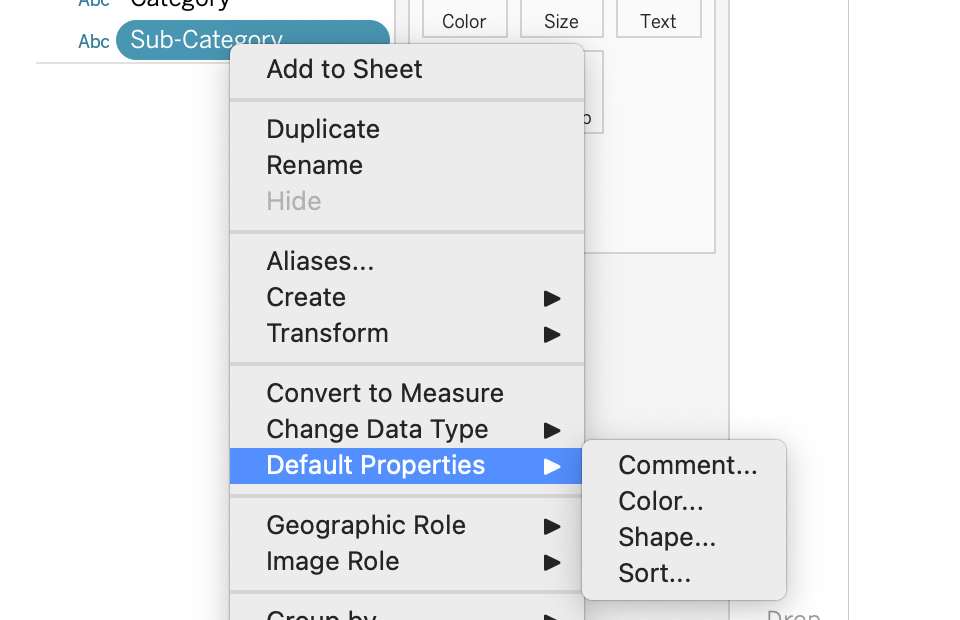
My Tableau Repositoryand every dashboard can start with the same colours. - Set default colors on fields. Right-click a dimension → Default Properties → Color and pick from your palette.